Token Management
The Workbench uses two kinds of tokens:
- A session token is automatically issued when a user successfully authenticates with a username and password; session tokens are short-lived (24 hours) and are used by interactive users.
- An API token is a long-lived credential created explicitly via the CLI or the Workbench console; used for machine-to-machine access by service accounts or regular users. A service account may only authenticate with a token.
A token's scope restricts it to a subset of the owning user's permissions. A token without scope restrictions inherits the full access of the owner. The system supports three scope types:
- Connection scope limits the token to specific database connections with a
per-connection access level of
readorread_write. A token scope can further restrict access toreadeven when the owning user hasread_writeaccess through group membership. The system always enforces the more restrictive level. - MCP privilege scope limits the token to specific MCP tools.
- Admin permission scope limits the token to specific administrative operations.
Each scope type supports a wildcard option that grants access to all items of that type:
- "All Connections" uses
connection_id=0to match every connection the owner can access. - "All MCP Privileges" uses
id=0to match every MCP privilege the owner holds. - "All Admin Permissions" uses
*to match every admin permission the owner holds.
The effective access for a scoped token equals the intersection of the owner's group-level access and the token scope. A token cannot exceed the access level of the owner.
Creating a Token
You can create a token with the Workbench console or at the command line.
To use the console to create a token, select the Settings icon, and then
select the Tokens tab from the left navigation pane. When the Tokens page
opens, select the + Create Token icon to open the Create token dialog:
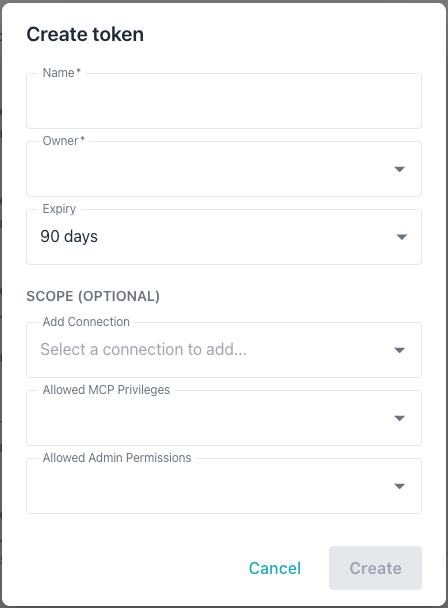
Provide the following information in the Create token dialog:
- The
Namefield sets the token annotation; use up to 255 characters. - The
Ownerautocomplete selects the user who owns the token; the token's effective access cannot exceed the owner's access. - The
Expirydrop-down sets the token lifetime; the choices are 30 days, 90 days, 1 year, or Never, defaulting to 90 days. - The
Add Connectionautocomplete adds a database connection to the token's scope; repeat this step to add multiple connections. The drop-down shows only connections the selected owner can access, and displaysNo optionswhen the owner has no connections assigned. After adding a connection, the access level defaults to the owner's maximum level for that connection; you can lower it toread. - The
Allowed MCP Privilegesdrop-down restricts the token to specific MCP tools; theAll MCP Privilegeswildcard grants every MCP privilege the owner holds. - The
Allowed Admin Permissionsdrop-down restricts the token to specific admin operations; theAll Admin Permissionswildcard grants every admin permission the owner holds. - The
Createbutton stays disabled until both theNameandOwnerfields are filled in.
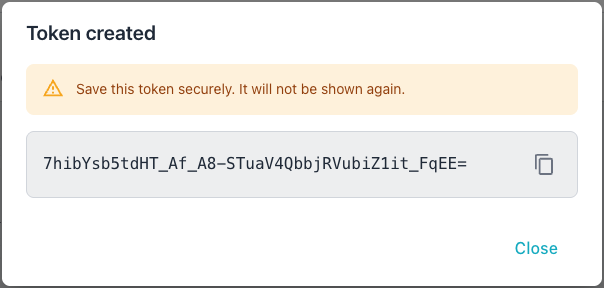
You can also create a token at the command line. In the following example, the
-add-token flag starts token creation in interactive mode, prompting you for
token details:
./bin/ai-dba-server -add-token
In interactive mode, provide the following:
- Owner username (required)
- Annotation or note (optional)
- Expiry duration (e.g.,
30d,1y,never)
To create a token in non-interactive mode, specify token properties when
invoking the -add-token command:
# Create token for a user
./bin/ai-dba-server -add-token \
  -user alice \
  -token-note "CI/CD Pipeline" \
  -token-expiry "90d"

# Create token for a service account
./bin/ai-dba-server -add-token \
  -user svc-bot \
  -token-note "Automation" \
  -token-expiry "never"
The -add-token command accepts the following expiry format strings:
30dspecifies 30 days.1yspecifies 1 year.2wspecifies 2 weeks.12hspecifies 12 hours.1mspecifies 1 month (30 days).neverspecifies that the token never expires.
The command displays the token upon creation:
===========================================================
Token created successfully!
===========================================================

Token: O9ms9jqTfUdy-DIjvpFWeqd_yH_NEj7me0mgOnOjGdQ=
Hash:  b3f805a4c2e7d9f1...
ID:    1
Owner: alice
Note:  CI/CD Pipeline
Expires: 2025-01-28T10:15:30-05:00
===========================================================

IMPORTANT: Save this token securely - it will not be
shown again! Use it in API requests with:
Authorization: Bearer <token>
===========================================================
Listing Tokens
The Workbench console and command line both display the list of API tokens.
Tokens appear on the Tokens tab in the Administration console:
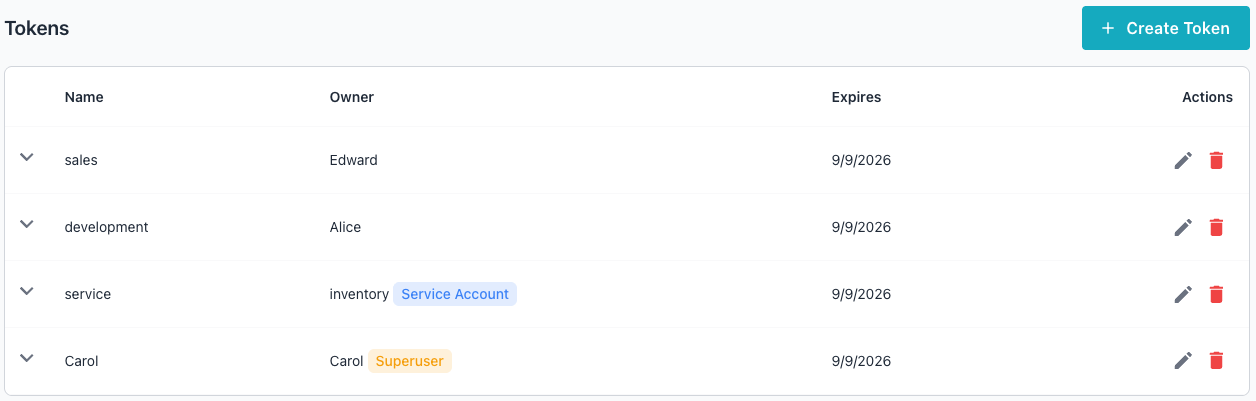
You can also list tokens at the command line. In the following example, the
-list-tokens flag displays all API tokens:
./bin/ai-dba-server -list-tokens
The command displays each token's ID, hash prefix, owner, and expiry status:
Tokens:
======================================================================
ID   Hash Prefix        Owner     Super  Svc    Expires          Status
----------------------------------------------------------------------
1    b3f805a4c2e7d9f1   alice     No     No     2025-01-28 10:15 Active
2    7a2f19d8e1c4b5a3   svc-bot   No     Yes    Never            Active
3    9c8d7e6f5a4b3c2d   bob       No     No     2024-10-15 14:20 EXPIRED
======================================================================
Removing Tokens
Tokens can be removed by ID or by hash prefix using the -remove-token flag.
In the following examples, the -remove-token flag deletes an API token by
its ID or hash prefix:
# Remove by token ID
./bin/ai-dba-server -remove-token 1

# Remove by hash prefix (minimum 8 characters)
./bin/ai-dba-server -remove-token b3f805a4